
As part of Mable’s commitment to compliance, all Support Coordinators, Aged Care Care Managers and Organisation Administrators have access to easy downloading of individual or bulk incident and support notes.
You are able to download all incident reports reported by support workers via the Mable app or reported by anyone directly to Mable via Mable’s website, phone or email, plus support notes for all clients under your account. Coordinators, not just Organisation Administrators, will also be notified by email when incidents occur relating to your clients via your dashboard.
Let’s review these account features and how you can access them from your Mable account.
Coordinators
Bulk download incident reports
You can bulk download incident reports from your Mable account by visiting the Compliance section from your dashboard.
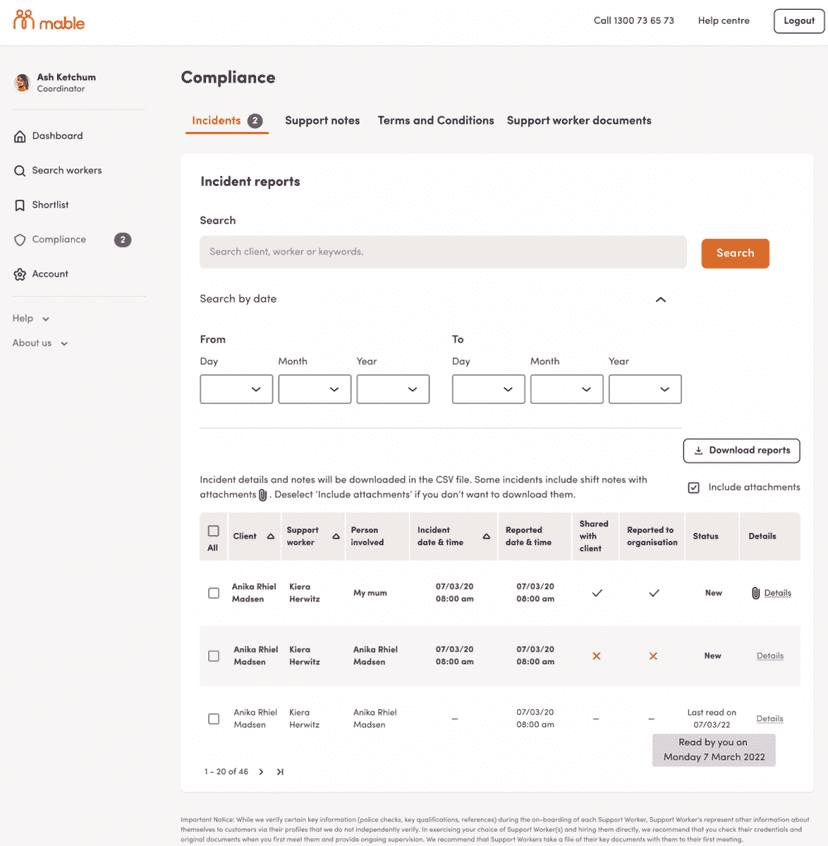
For example, Coordinator Ash logs into her Mable account and sees there are two unread incident reports on her dashboard.
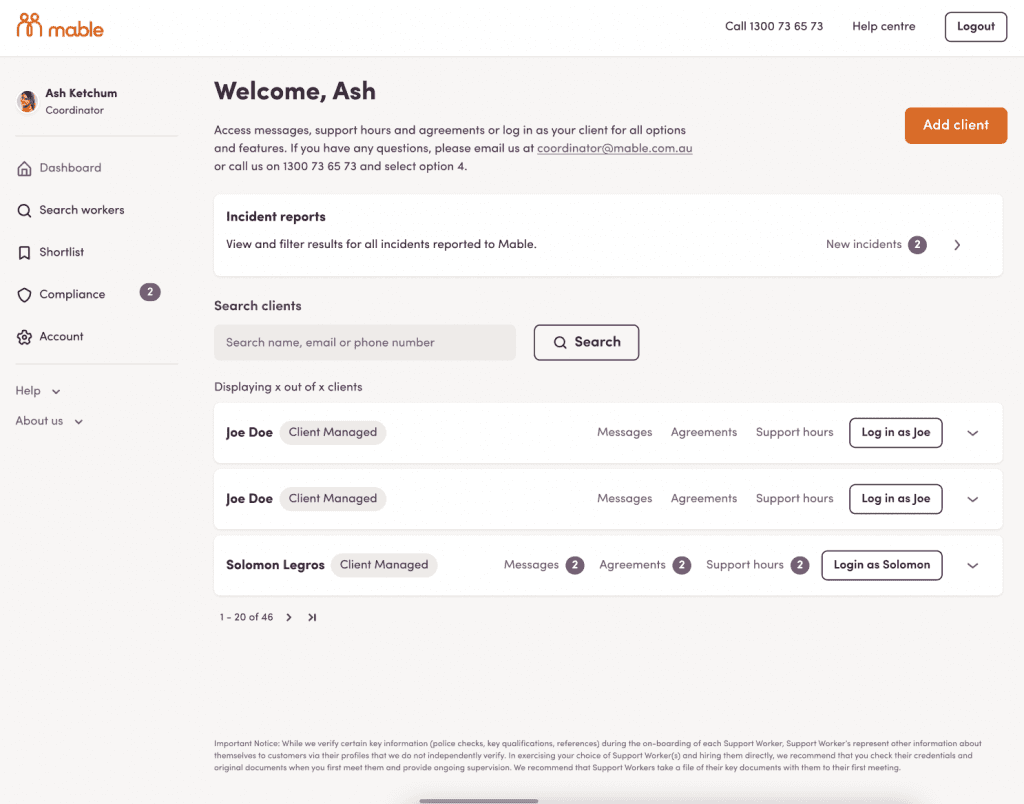
Ash visits the Compliance section and sees the two reports relate to client Anika. Ash can bulk download the reports by selecting them and clicking “Download reports.”
When you see the paperclip icon, the report has attachments you may preview before downloading by clicking the Details link.
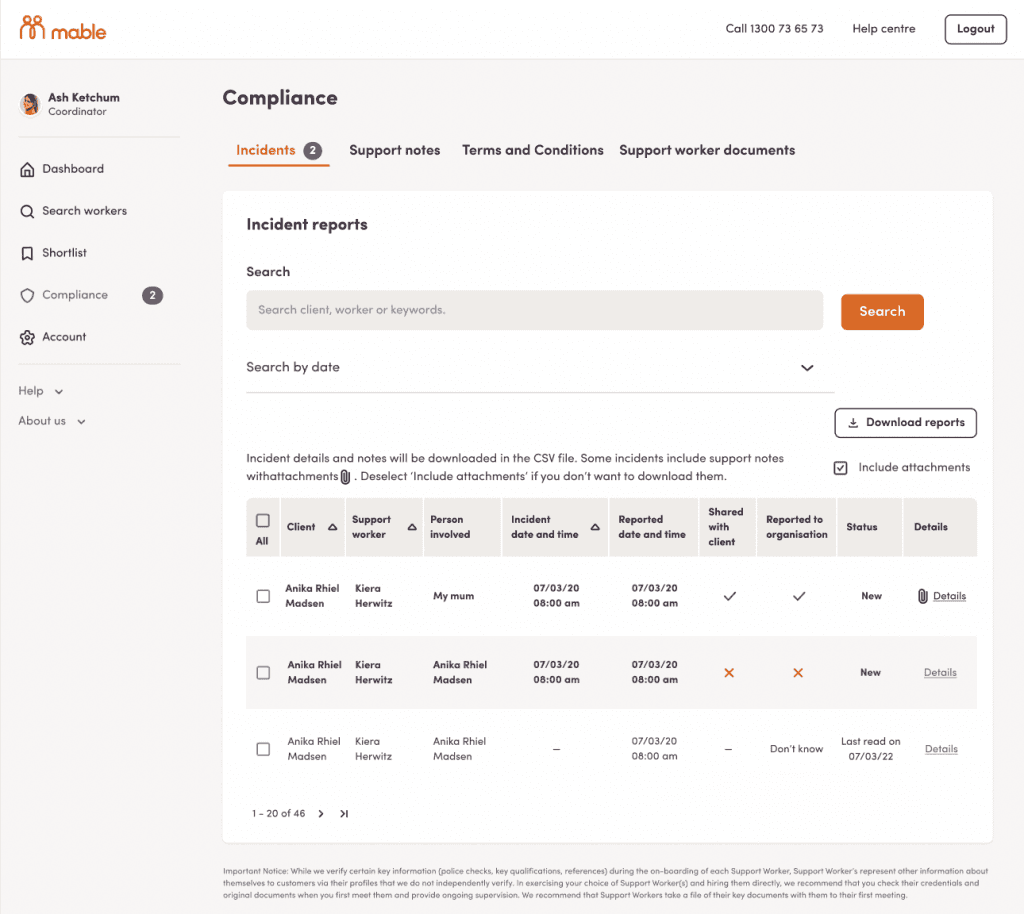
If you select a single incident with an attachment, it will be downloaded as a zipped file. If you select more than one incident which has at least one attachment, it will be downloaded as a zipped file.
The incident reports are downloaded as follows:
| Incident(s) to be Downloaded | With Attachment? | File Type | File Naming Convention | Folder Naming Convention |
|---|---|---|---|---|
| Single | No | CSV file | n/a | |
| Single | Yes | Zipped file | Incident(s) + [start date]-[end date+ | [ClientName_WorkerName] |
| Bulk | No | CSV file | Clients of [Coordinator last name]+Dowloaded as as [Download date&time] | n/a [ClientName_WorkerName] |
| Bulk | Yes | Zipped file | Individual folders named by their support SessionID which is in the CSV file |
If Ash wishes to download only one report, she selects the applicable session and clicks “Download reports.”
You will also be able to see the last time you read incident-specific details via the status column. Hover over the “last read on” text in this column for further information.
Please note that our platform automatically lists unread incident reports at the top.
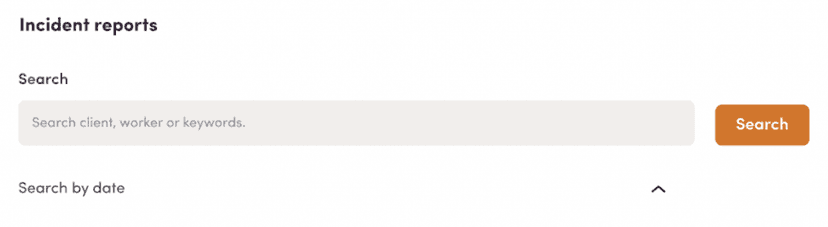
You may also search by client, worker or keywords, plus filter by the first four fields including incident date and time.
Bulk Download Support Notes
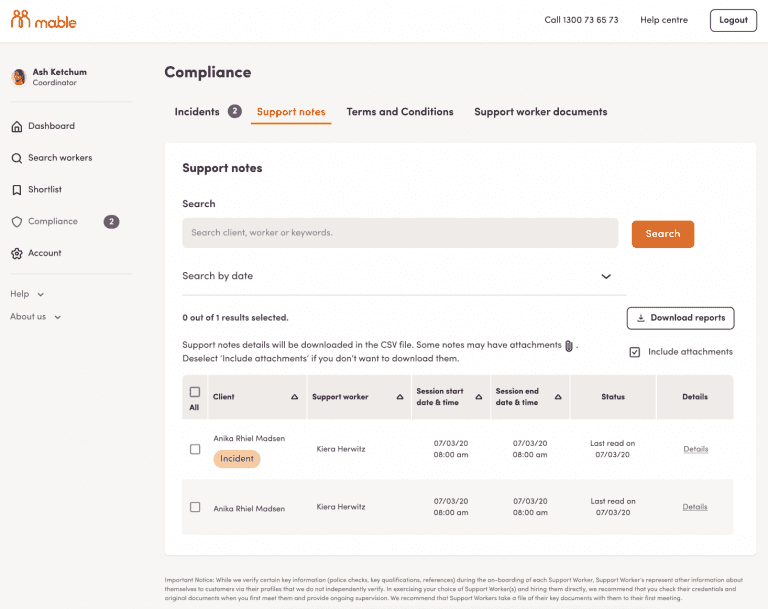
Similarly, you can also bulk download support notes in the “Support notes” tab in the Compliance section. The naming convention is similar to Incidents, except instead of “Incident(s)” it will be “SupportSession(s)”, ie “SupportSession(s)[start date]-[end date]_Clients of [coordinator last name]_Downloaded as at [Download date&time]”
View single support notes and incident reports for a specific client
You can download support notes and incident reports for a specific client without logging into your client's account, and instead through your own account via the Compliance page.
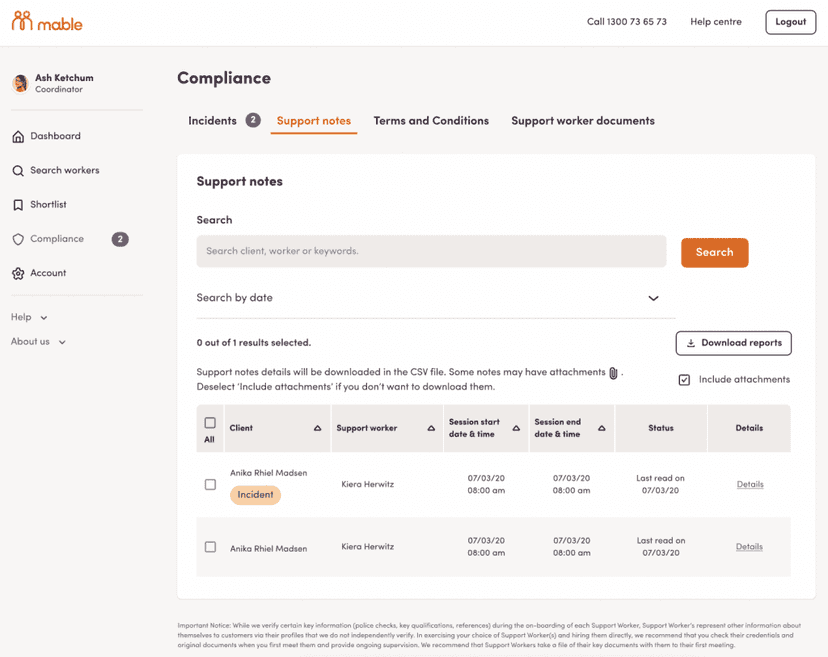
Because there has been an incident report lodged regarding a session, this is highlighted by our system in the Support Notes tab.
Ash can select a specific session(s) or All sessions, and click "Download reports" to download the information.
Organisation Administrators
For Organisation Administrators, these new features also improve accessibility to make preparing for Quality Assessment audits easier.
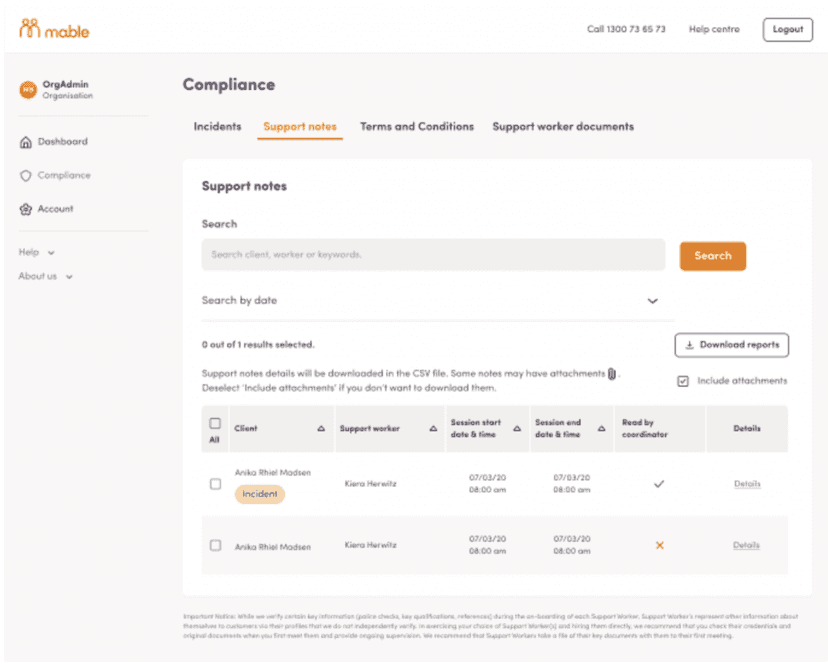
An Organisation Administrator can bulk download reports by visiting the Compliance section and selecting as many available reports as needed.
You can search by client, worker, keyword or by a specific timeframe.
The incident reports are downloaded as follows:
| Incident(s) to be Downloaded | With Attachments? | File Type | File Naming Convention | Folder Naming Convention |
|---|---|---|---|---|
| Single | No | CSV file | Incident(s)+[start date]-[end date]+Clients of [OrganisationName last name]+Downloaded as at [Download date& time] | n/a |
| Single | Yes | Zipped file | [ClientName_WorkerName] | |
| Bulk | No | CSV file | n/a | |
| Bulk | Yes | Zipped file | [ClientName_WorkerName] Individual folders named by their support SessionID which is in the CSV file. |
The process is the same for Support Notes, where sessions with an Incident Report lodged are highlighted.
If you have any further questions regarding these features, please contact our Australian-based support team.